The WP Rig Tools toolbar is a development-only control center that docks to the bottom of every page while you work in your local environment. It brings the kind of in-browser DX that modern frontend frameworks take for granted to WordPress theme development: visual element inspection, template tracing, design-token auditing, automated accessibility checks, and one-click cache purges — all without leaving the page.

Where you get it
The toolbar requires zero setup. It enqueues automatically when WP Rig detects a local development environment: WPRIG_DEBUG defined true, or a local hostname (localhost, 127.0.0.1, or a .test / .local / .dev domain). There is nothing to opt into — start npm run dev, load the site, and the dock is there.
Zero production overhead
- Debug-only enqueue: the toolbar assets only register in local/debug conditions — they never load for real visitors.
- Stripped from bundles: the production compiler ignores the toolbar scripts entirely; zero bytes reach the production theme.
- Component omission: the PHP
Dev_Toolscomponent is excluded from the production zip, so no class registration or load attempt ever happens. - Shadow DOM isolation: the entire UI mounts in a shadow root — toolbar styles can never leak into your theme, and theme styles can never break the toolbar.
- Self-contained: built with React + TypeScript on the existing esbuild pipeline, styled with vanilla CSS custom properties. No new dependencies.
AI Selector — element inspection & agent prompts
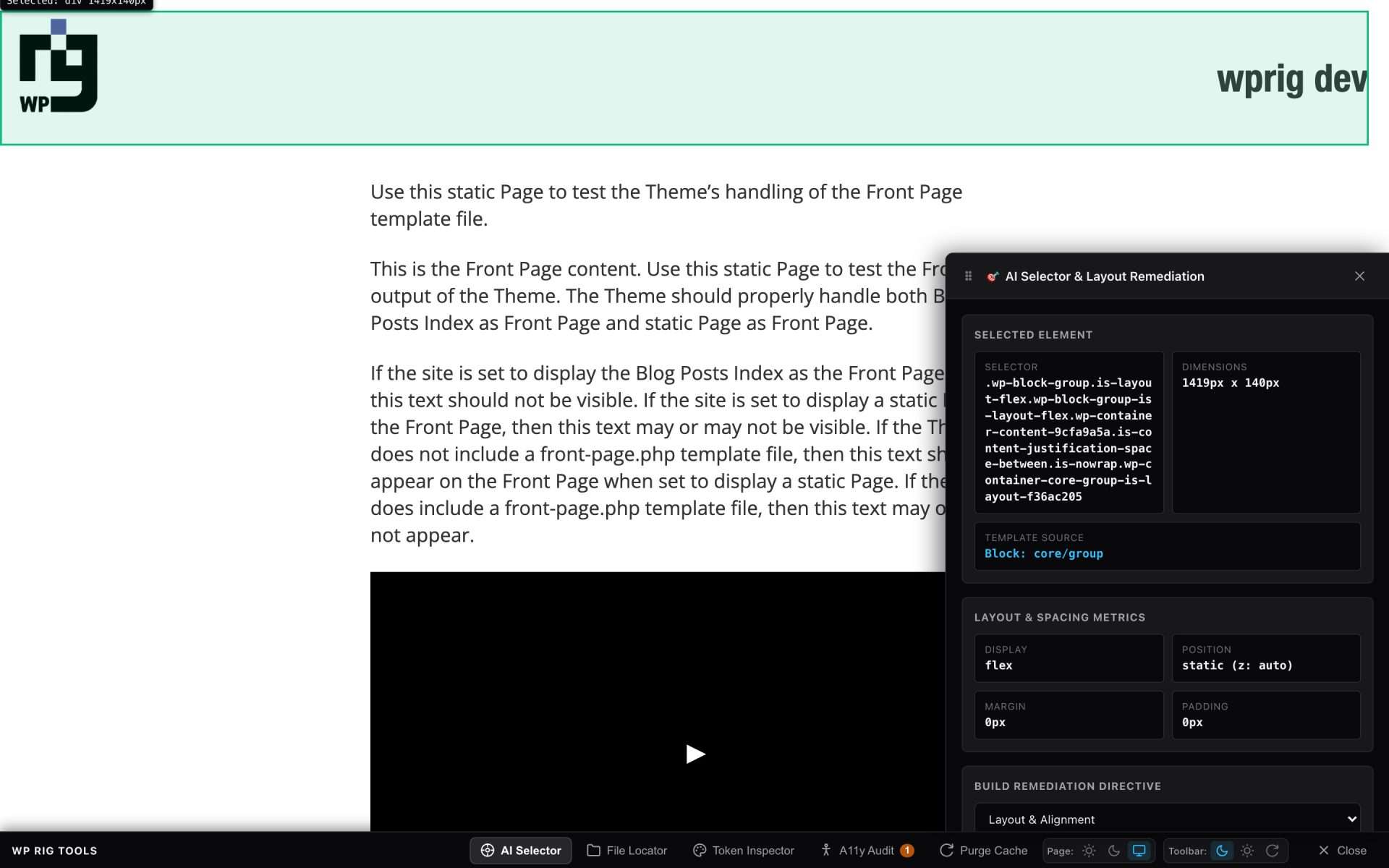
Click the target icon (or activate AI Selector) and then click any element on the page. The inspector panel shows everything an agent (or you) needs to reason about the element:
- Selector: the BEM-ish class path of the element.
- Dimensions: computed box size.
- Template source: which PHP template part or core block rendered it (see File Locator below).
- Layout & spacing metrics: display mode, position/z-index, margin, padding.
Then write a plain-language directive (“Align button with branding”), hit Generate Prompt, and the toolbar copies a fully structured markdown prompt to your clipboard — URL, selector, dimensions, display context, and your directive — ready to paste into Gemini CLI, Claude, or any AI assistant for instant, precise visual fixes.
File Locator — what rendered this?
Hover any element and the File Locator tells you which file produced it. Under the hood, WP Rig’s debug mode wraps every get_template_part() render in HTML boundary comments:
<!-- WPRIG_TEMPLATE_START: template-parts/header/site-branding.php -->
<div class="site-branding">...</div>
<!-- WPRIG_TEMPLATE_END: template-parts/header/site-branding.php -->The toolbar parses these comment boundaries on hover and resolves the file source tree — no guessing which partial owns a stray <div>. For block-rendered content it reports the block instead (e.g. Block: core/group).
Token Inspector — catch hardcoded values
The Token Inspector audits the page’s CSS against your design tokens (from config/tokens.json / theme.json). Elements using hardcoded colors or off-spec spacing are flagged inline, with the offending value and the suggested token:
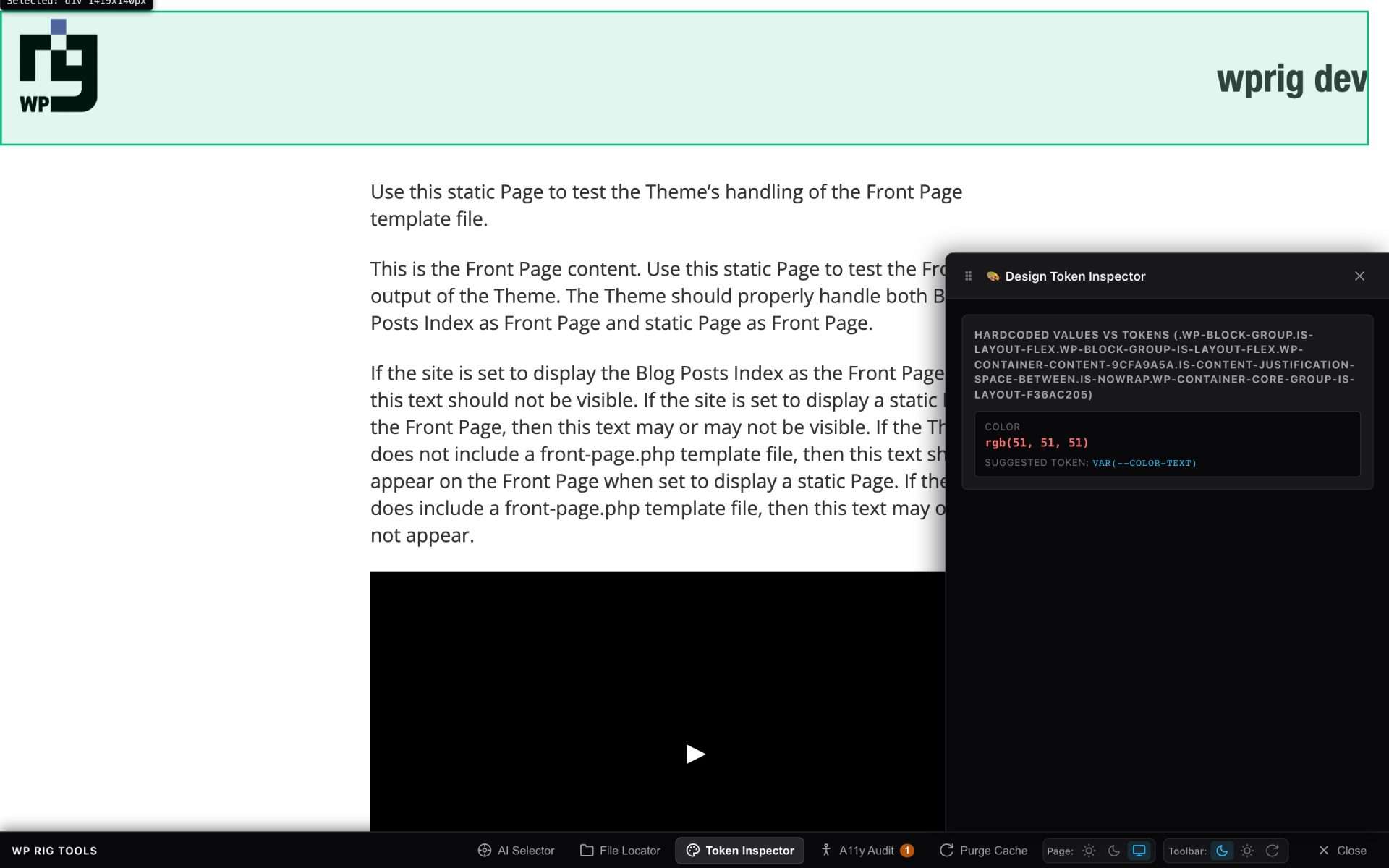
rgb(51, 51, 51) flagged with its suggested replacement var(--color-text).This closes the loop with the design token system: tokens define the vocabulary, the lint rules enforce it at build time, and the Token Inspector catches violations visually — including values coming from the database (Global Styles, block attributes) that no linter can see.
A11y Audit — live WCAG checks
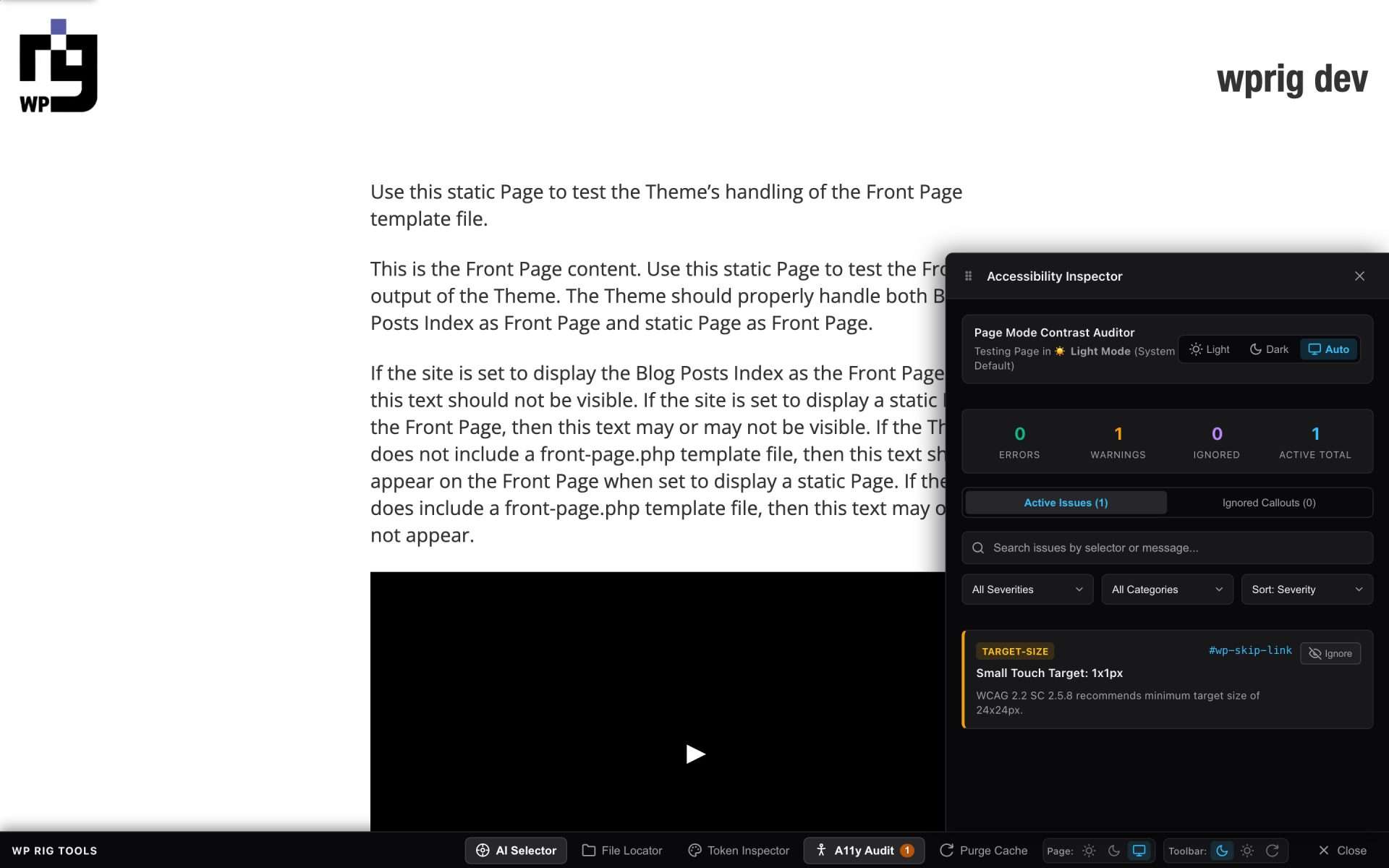
The Accessibility tab runs automated WCAG checks on the live page and reports findings in a filterable panel with severity/category/search controls:
- Missing
altattributes on images. - Form controls lacking accessible labels.
- Non-sequential or empty heading elements.
- Low-contrast text — audited per color scheme (the page can be forced light/dark from the dock).
- Touch targets below the WCAG 2.2 minimum (24×24px).
Each issue links straight to the offending element on the canvas, supports one-click Ignore (persisted in localStorage), and — like the AI Selector — can generate a remediation prompt for your AI assistant, including suggested fixes such as adding an aria-label.
Dock utilities
- Purge Cache: one click clears WordPress transients and local asset caches (also available as a dock button — no WP-CLI round trip).
- Page light/dark/auto: force the page color scheme to test how the theme (and the audit tools) behave in both modes.
- Toolbar light/dark/auto: the dock itself follows your preference independently of the page.
- Close: dismiss the dock for the session; it returns on the next page load.
Under the hood
For the curious: the toolbar is a React app compiled to a single dev-toolbar.js bundle (assets/js/dev/dev-toolbar.tsx → assets/js/build/), mounted into a shadow root via constructable stylesheets, with a dependency-free reactive state store driving the tabs. The PHP side (inc/Dev_Tools) handles environment detection, asset enqueueing, template boundary comments, the AJAX nonce for cache purging, and localized config. The full design specification lives in the repo at docs/design-wp-rig-dev-toolbar.md.
Related reading
Design Tokens v2 (what the Token Inspector audits against), Theme Paradigms (the toolbar works in all three), and the rig CLI (npm run dev starts the environment that shows it).